Site permissions
To provide safe and convenient browsing experience, Yandex Browser applies various processing rules to site elements. It blocks pop-ups, warns you when a website requests your location, and so on. To change Yandex Browser behavior for all sites or the selected one, go to settings or use the Protect panel. For example, you can choose to block JavaScript on all sites or allow a site to access your camera.
Which processing rules can be changed
- For the current site: You can change the processing rules for the main list of elements in the Protect toolbar.
- For all sites: You can change the processing rules for a broader list of elements in your settings.
Elements that you can manage using the Protect toolbar
Note
Icons from the table are displayed in the SmartBox on the right. They show processing rules for the current site. To change a processing rule, click the icon.
|
Content settings |
Default processing rules |
Alternative rules and icons in the SmartBox |
|
|
|
|
Camera |
|
|
|
Microphone |
|
|
|
|
|
|
|
|
|
|
|
|
Pop-up windows |
|
|
|
Background syncing |
|
|
|
|
|
|
MIDI devices |
|
|
|
|
 Allow — allow the site (for example, if it's Yandex Maps) to detect your location without asking for permission each time.
 Block — prevent the site from requesting your location.
 Allow — allow the site to automatically access your camera. For HTTP sites, this setting will remain activate for the duration of your session. For HTTPS sites, the permission to access your camera will remain valid for future sessions as well.
 Block — prevent the site from accessing your camera.
 Allow — allow the site to automatically access your microphone. For HTTP sites, this setting will remain activate for the duration of your session. For HTTPS sites, the permission to access your microphone will remain valid for future sessions as well.
 Block — prevent the site from accessing your microphone.
 Allow — allow the site (for example, if it's Yandex Calendar) to show you notifications.
 Block — block JavaScript on this site. Some JavaScript scripts steal passwords and infect the computer. This option allows you to block the site from running any JavaScript. It will enhance security but can prevent the site from working correctly.
 Block — prevent the site from displaying images. It will load faster without images.
 icon.
icon. Allow — allow the site to automatically download multiple files without asking for permission each time.
 Block — prevent the site from downloading files except those you selected.
 Allow — grant the site automatic access to MIDI devices.
 Block — prevent the site from accessing MIDI devices.
 Enabled — allow strict verification of certificates and disable all Yandex Browser extensions.
Elements that you can manage from your settings
Note
Icons from the table are displayed in the SmartBox on the right. They show the processing rules applicable to the current site. To change a processing rule, click the icon.
In the settings, you can manage all elements from the Protect panel and change the processing rules for the following elements:
|
Site element |
Default processing rules |
Alternative processing rules and icons in the SmartBox |
|
|
|
|
Protocol processing |
|
|
|
Protected content |
|
|
|
USB devices |
You can connect the site to a USB device (for example, in order to save heart-rate monitor data on the page). |
|
 Not allowed — prevent the site from collecting information about you (your username, password, or browsing data). Blocking cookies may hinder the site's functionality.
Changes the processing rules for the current site
You can change rules for processing elements on the current site in the Protect toolbar:
-
Open a page on the site.
-
In the SmartBox, click the connection status icon.
-
The Protect panel opens. In the connection status section, click Learn more.
-
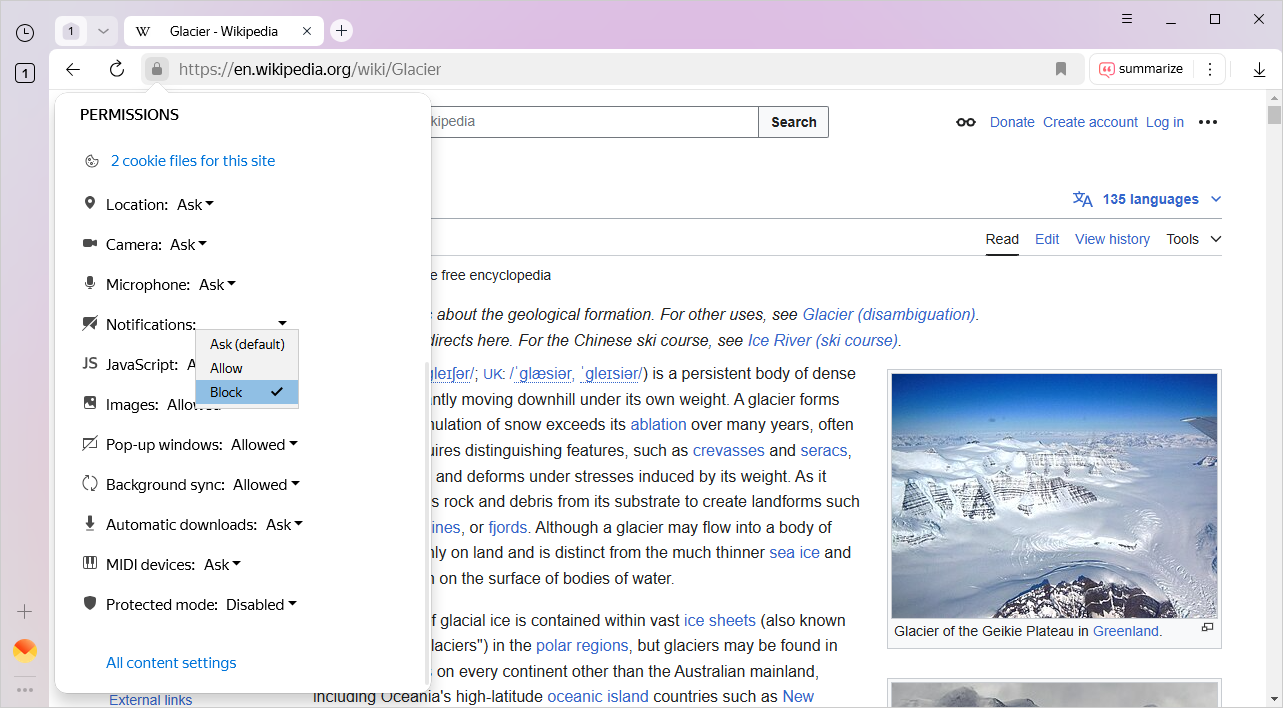
Find the site element in the Permissions section.
-
Select the option you need in the drop-down list: Block, Allow or Ask.
Then you will see that option for the changed element in the Protect window that appears. The option can be easily toggled, but the setting will only apply to the current site.
Changing processing rules for all sites
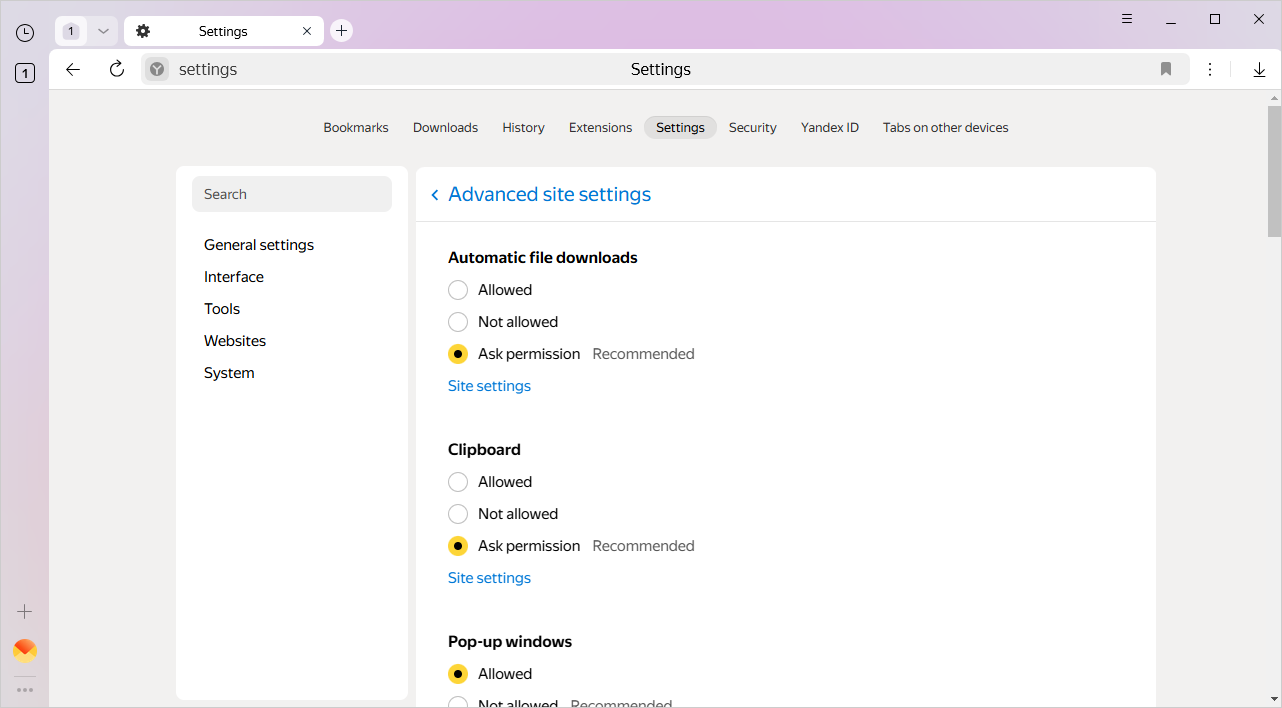
Element processing rules for all sites can be changed in Yandex Browser settings:
-
Click → Settings → Websites.
-
At the bottom of the page, click Advanced site settings.
-
Set your element processing rules.
Setting and deleting exceptions for selected sites
If Yandex Browser rules interfere with how you use a website, you can set an exception for this site. For example, you can allow Yandex Maps to determine your location automatically, but have all other sites ask for your permission.
Setting an exception:
-
Click → Settings → Websites.
-
At the bottom of the page, click Advanced site settings.
-
Below the name of the desired element, click Site settings.
-
Go to the Allowed or Not allowed tab and click Add in the upper-right corner.
-
Enter the site URL in the box. You can use masks for setting an address. For example, if you write
https://[*.]example.com, the exception will be valid for the domain and all of its subdomains: -
Click Add.
Note
You can always move a site from the "Allowed" list to the "Not allowed" list and vice versa. To do this, hover your mouse cursor over the site and click Deny or Allow to the right.
Removing an exception:
-
Click → Settings → Websites.
-
At the bottom of the page, click Advanced site settings.
-
Below the name of the desired element, click Site settings.
-
Hover over the site and click the Remove link that appears on the right.
The “Do not track” option
Some sites find out the URLs of pages you visited and use this information to display ads, gather statistics, and so on.
To prohibit sites from collecting information about what you do online:
-
Click → Settings → System.
-
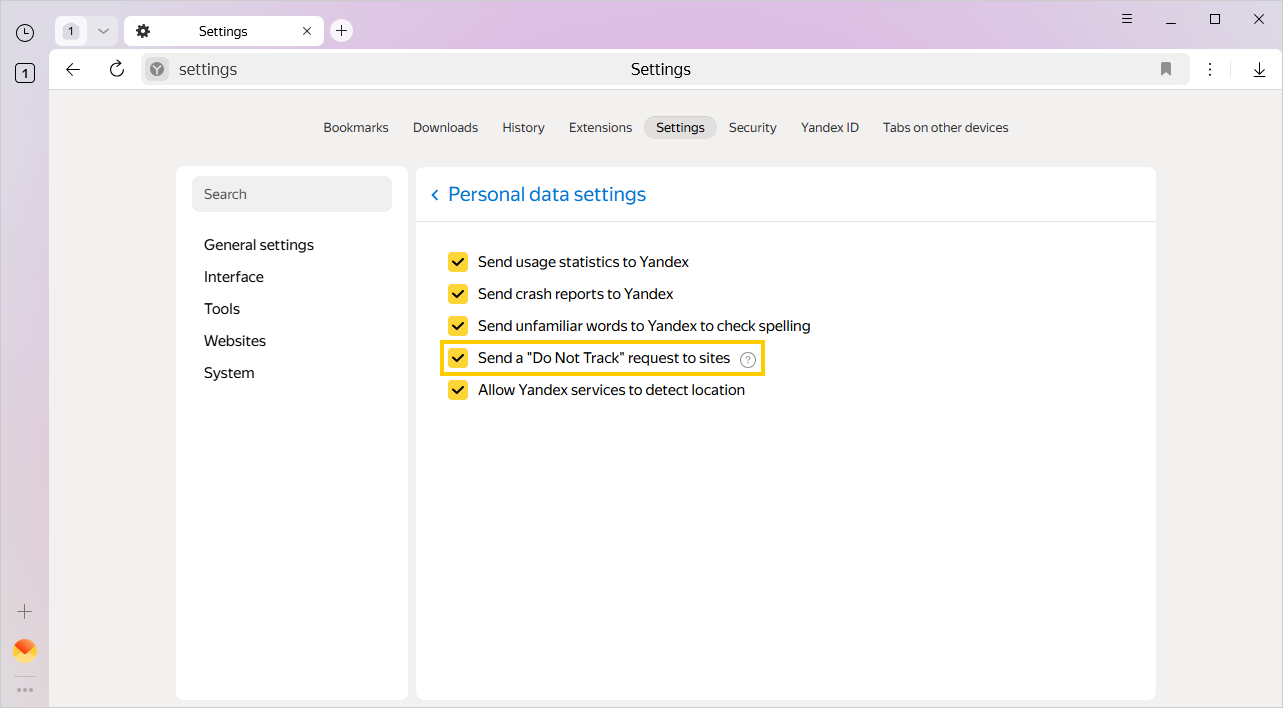
Open Personal data settings.
-
Enable the Send a "Do Not Track" request to sites option.
Alert
Not all sites understand the Do Not Track request. Even if you turn on Do Not Track, many sites will continue to collect and use your browsing data.
You can enter search queries in the address bar and Yandex Browser will understand what you need.