My profile
What is My profile?
My profile is a Yandex Browser workspace that stores all your data, including your browsing history, bookmarks, open tabs, autofill data, and payment methods. You can sync your main profile data to your Yandex ID account.
To access this data across all your devices, log in to Yandex Browser for mobile with your Yandex ID.
Tip
Link your main account that you use on Yandex services to the profile.
Syncing this data helps you to:
-
Access your data across all your devices.
-
Quickly restore your data after reinstalling Yandex Browser.
-
Seamlessly access Yandex Browser tools (such as Alice AI and autofill for data, passwords, and card details) across different devices.
-
Easily access Yandex services like Yandex Market and Yandex Music through Yandex Browser.
Account types
Browser account: A Yandex ID account linked to Yandex Browser on your device and used to sync your data.
Web accounts: Yandex ID accounts used to access Yandex web services (such as Yandex Mail, Yandex Disk, and Yandex Music). You can switch between different Yandex web accounts without logging out of your browser account.
All account actions are available in the Manage accounts section. To open it:
-
In the lower-right corner, tap → your profile picture .
-
Tap Manage accounts.
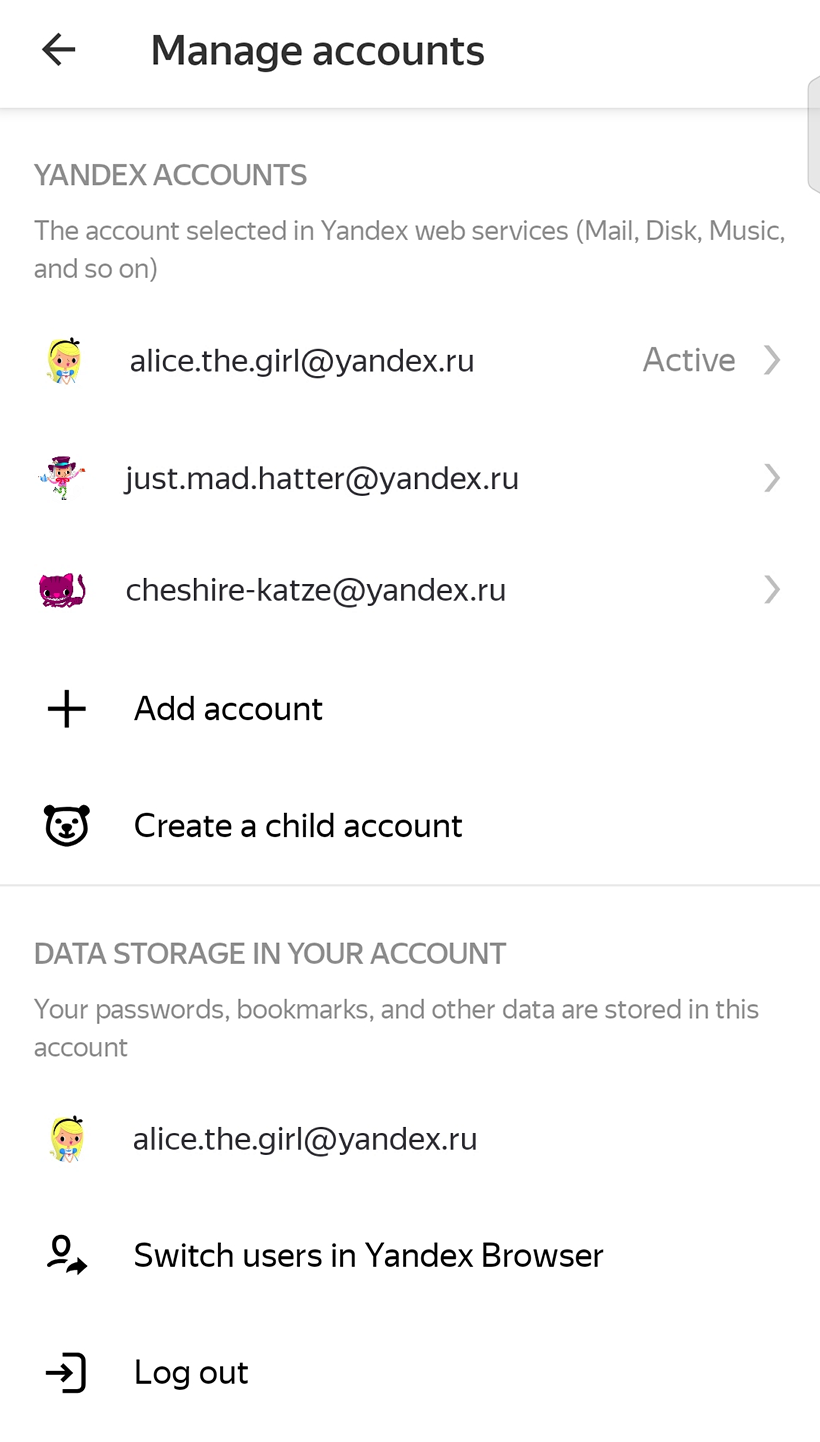
The Yandex accounts section lists the accounts you can switch to for accessing Yandex web services. You can add multiple accounts.
The Account linked to the browser section shows the browser account used to store your data. You can switch to a different account or log out.
Adding a browser account
When you log in to Yandex Browser for the first time, a profile is created automatically. Link this profile to your account. You can use multiple accounts and switch between them.
To link an account:
-
In the bottom-right corner, tap .
-
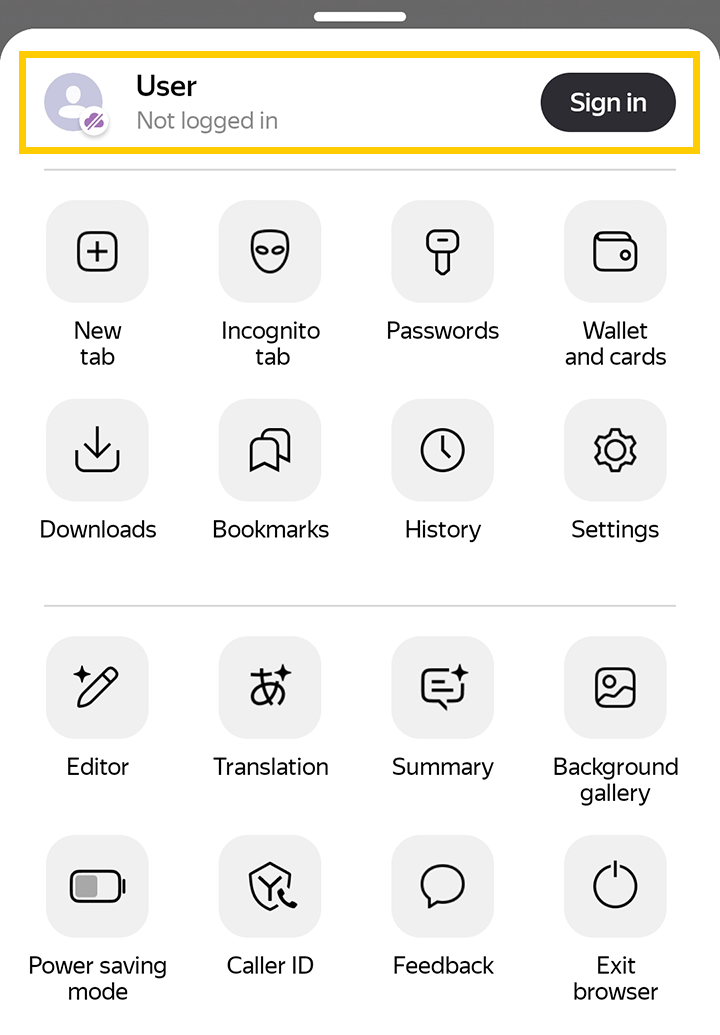
At the top of the menu, select User → Log in with Yandex ID, or tap Log in.
-
In the window that opens, select an account from the list or log in with Yandex ID.
After you log in, the account appears in both sections:
-
Yandex accounts: For accessing web services.
-
Account linked to the browser: For storing data.
Managing data
Enable data sync for your browser Yandex ID account so you can access it from any device. You can configure the list of synced data by toggling the available options:
-
In the lower-right corner, tap → your profile picture .
-
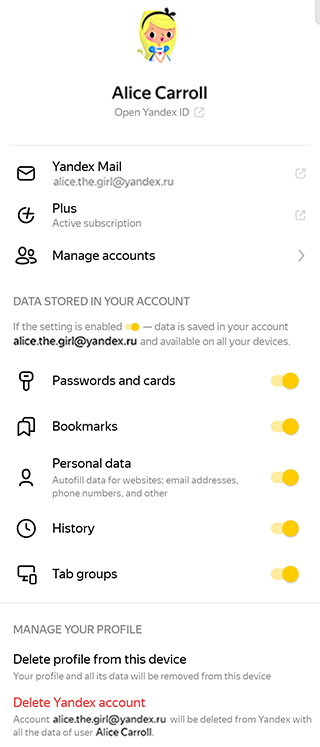
Under Data stored in your account, select which data you want to save to your account:
- Passwords and cards.
- Bookmarks.
- Personal data.
- History.
- Tab groups.
Warning
The data you choose not to sync is stored only on your current device and will be permanently lost if you delete your profile or uninstall Yandex Browser.
Using multiple accounts
You can use multiple accounts by linking profiles to the accounts you need.
-
In the lower-right corner, tap → your profile picture .
-
Tap Manage accounts → Switch users in Yandex Browser.
-
In the list that opens, select the account you want to switch to.
Tip
You can use multiple profiles, linking one to your personal account and another to your work account. This allows you to keep your data separate and automatically open sites under the appropriate account.
Deleting a profile
-
In the lower-right corner, tap → your profile picture .
-
Under Manage your profile, select Delete profile from this device.
-
In the window that opens, confirm that you want to delete the profile and related data.
Warning
Any types of data disabled from syncing to your account will be permanently lost when you delete your profile or Yandex Browser. Your account will still retain all synced data. You'll be able to access it from any device where you add a profile linked to that account.
Deleting a Yandex ID account and all its data
Alert
This option completely deletes the Yandex account and associated data across all services. Access recovery is only possible under specific conditions.
-
In the lower-right corner, tap → your profile picture .
-
Under Manage your profile, select Delete Yandex account.
-
In the window that opens, confirm that you want to delete the profile and related data.
Note
After deletion, the data will no longer be stored in Yandex and will remain only on the devices that were linked to your account.
FAQ
Can I recover data that was deleted from the device along with my profile?
When you delete a profile from your device, the data sync settings are disabled. You can recover the data that was previously synced to your account. To do this:
-
In the bottom-right corner, tap .
-
At the top of the menu, select User → Log in with Yandex ID, or tap Log in.
-
In the window that opens, select an account from the list or log in with Yandex ID.
-
Enable the setting for the types of data you want to restore for your account.