Consider geofences
You can create geofences in the interface and then use them for planning via Excel or API. You can also set geofences directly in the API request.
Ignore zones
If you enable the options.ignore_zones option, you will cancel all geofencing restrictions. For more information, see Geofences and Incompatible geofences.
"options": {
    "ignore_zones": true
}
When planning with an Excel file, you can specify the ignore_zones option in the Planning interface on the Settings → Consider geofences tab. The ignore_zones = true field value corresponds to the pressed button No.
Incompatible geofences
When planning routes, you may need to allocate orders to different runs:
-
Due to the road's characteristics. For example, we don't recommend delivering orders to opposite sides of a river or railway in one run. This way, you use bridges and crossings less often.
-
Because of billing specifics. For example, to divide orders by direction.
In such cases, you can use geofences and specify their incompatibility on the Options sheet in the incompatible_zones.N field, where N is the number of the incompatible geofence set (there can be multiple sets, numbering starts from 0).
Orders in incompatible geofences can't be delivered in the same run. When planning routes, orders are distributed to different runs if they have at least one incompatible geofence.
"options": {
    "incompatible_zones": [
        [
            "zone2",
            "zone3"
        ]
    ]
}
Incompatible zones can also be set for individual couriers.
Note
To allow couriers to visit specific combinations of incompatible geofences in one route, use the compatible_zones parameter. For more information, see Manage geofence compatibility.
Example 1
This example shows incompatible geofences zone1 and zone2. Their orders can't be delivered in one run. Order 2 is in zone1, and order 4 is in zone2. All orders are delivered by the same vehicle.
As a result, the vehicle does two runs.
API request (JSON) ⋅ API response ⋅ View on map
Example 2
The same conditions as in Example 1, but the following setting is used in the Planning interface: Settings → Consider geofences → No.
As a result, the vehicle delivers all orders in the same run.
API request (JSON) ⋅ API response ⋅ View on map
Manage geofence compatibility
You can manage geofence compatibility: prohibit delivery to incompatible geofences, but make exceptions for certain combinations. For example, you can do this when the general rule prohibits couriers from visiting areas that are far apart, but they're allowed to visit neighboring ones connected by a single highway.
To do this, use two parameters:
-
options.incompatible_zones: Sets a list of geofences that can't be visited together on the same route. This restriction applies to all couriers. -
options.compatible_zones: Sets a list of geofences that can be combined, even if they're on the incompatible list.
These parameters work only in pair: options.compatible_zones overrides the restrictions from options.incompatible_zones.
You can set a list of such geofences for the entire solution or just for a specific courier. To do that, use vehicles.incompatible_zones and vehicles.compatible_zones.
Note
The vehicle.incompatible_zones and vehicle.compatible_zones parameters have a higher priority than options.incompatible_zones and options.compatible_zones.
How it works
-
In
options.incompatible_zones, list the geofences that are incompatible with each other. -
In
options.compatible_zones, specify compatible geofences. -
The algorithm will first apply the restriction and then cancel it for combinations from the list of compatible geofences.
For example, couriers can't visit remote areas in one run: North, South, West, and East. However, as an exception, North and East can be combined, as they're connected by a highway.
Query
"options": {
    "incompatible_zones": [
        [
            "north",
            "south",
            "west",
            "east"
        ]
    ],
    "compatible_zones": [
        [
            "north",
            "east"
        ]
    ]
}
Example
Couriers deliver orders to different areas of the city. These areas are defined by geofences: Krylatskoye, Strogino, Tushino, Mitino, and Chertanovo.
To avoid long trips, all five districts are marked as incompatible with each other. However, some of them are compatible with each other:
-
Neighboring districts:
MitinoandTushino. -
Proximity via the MKAD:
KrylatskoyeandStrogino.
To do this:
-
List the incompatible geofences in
options.incompatible_zones:Krylatskoye,Strogino,Tushino,Mitino, andChertanovo. -
List the geofences that can be visited together in
options.compatible_zones:-
MitinoandTushino. -
KrylatskoyeandStrogino.
-
As a result of planning:
-
Chertanovois not included in routes with other districts. -
Orders from
MitinoandTushinoare combined into one route. -
Orders from
KrylatskoyeandStroginoare combined into one route.
API request (JSON) ⋅ API response ⋅ View on map
Excluded zones
Couriers must avoid traveling through certain areas, for example, specific mountainous roads, bridges, or crossings. Such restrictions can be in effect permanently or only at certain times.
To designate excluded zones:
-
When planning routes, on the Options sheet, set conditions depending on the restriction period:
-
For a permanent restriction — in the
avoid_zonesfield, specify zone names separated by commas. -
For a temporary restriction — set a schedule, where:
avoid_zones_schedule.N.idis the name of a zone.avoid_zones_schedule.N.schedule.Nis the time period when the zone must be avoided.
-
The difference between forbidden and excluded geofences
You can specify geofences within which the couriers aren't allowed to deliver orders in the forbidden_zones field on the Vehicles sheet. See Setting geofences. But couriers can still travel through these geofences. Geofences listed in the Options sheet in the avoid_zones field restrict couriers from traveling through them.
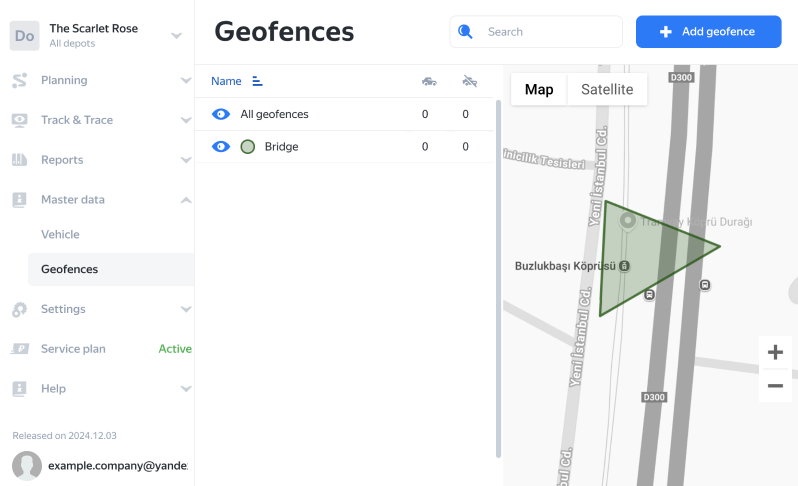
You can use a maximum of 300 points to specify excluded zones via the interface or API. To ensure you stay within the limit, consider these suggestions:
-
Use a triangular shape for your geofences.
-
Instead of selecting the entire zone, focus on key points such as checkpoints and entry points.
For example, you don't need to select the entire bridge area to prohibit couriers from passing through it. Just add a triangular geofence at the entrance.
Screenshot
Allocation of problem orders
Sometimes, it's impossible to plot a route to an order via roads. For example:
- The order is in an inaccessible location.
- The route goes through excluded geofences.
If an order can't be delivered using roads, it will still be included in the planned route as a straight-line distance. In this case, the length of the route segment and the travel time will increase by 5 times. The API response for the unavailable order will have the route.node.haversine_edge parameter set to true.
To avoid such planning, open the Options sheet and set the haversine_fallback parameter (options.haversine_fallback in the API) to false (it's true by default). This way, such orders will be placed in the unassigned category.
Example 1
You need to complete five orders, with one of them located on an island. The route to this order is plotted via a bridge. The length of the route is 46.08 km. The distance to order 5 is 5.78 km. The route to the order location is plotted via a bridge. You can see this in the road view mode.
API request (JSON) ⋅ API response ⋅ View on map
Example 2
The same as in Example 1, but all bridges to the island are defined as excluded geofences. By default, the haversine_fallback parameter on the Options sheet is not set, meaning it defaults to true.
As a result, the path to order 5 is plotted as a straight-line distance. The route length is 57.64 km, and the distance to order 5 is 10.35 km.
API request (JSON) ⋅ API response ⋅ View on map
Example 3
The same as in example 2, but the haversine_fallback parameter on the Options sheet is set to false.
As a result, order 5 becomes unassigned.
API request (JSON) ⋅ API response ⋅ View on map
Example 4
A courier needs to complete 10 orders. The coordinates of order 3 were entered incorrectly by mistake, which placed it on an island about 1.5 km from Moscow, far from where it's supposed to be delivered. The island is unreachable by road.
As a result, order 3 is included in the route, but this increases the route segment and travel time by five times. The API response shows route.node.haversine_edge set to true. The route is plotted as a straight-line distance.
API request (JSON) ⋅ API response ⋅ View on map