Working with depots
The depot card contains information about orders that need to be picked up from or delivered to the depot.
View depot information
Go to the depot card. according to your selected route view in the app.
-
Find the depot on the map.
-
Drag the interface element up to the edge to view depot information and possible actions.
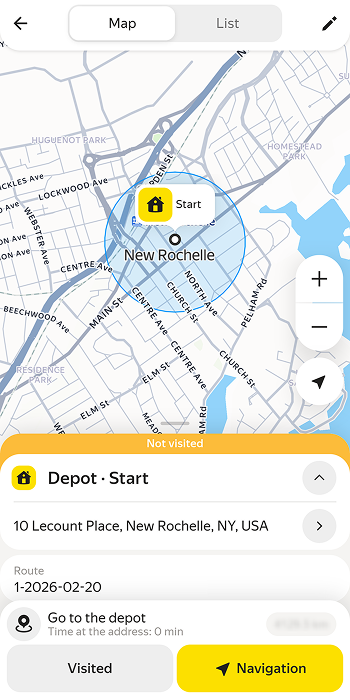
- Find a depot.
- Tap the depot address to view information about it.
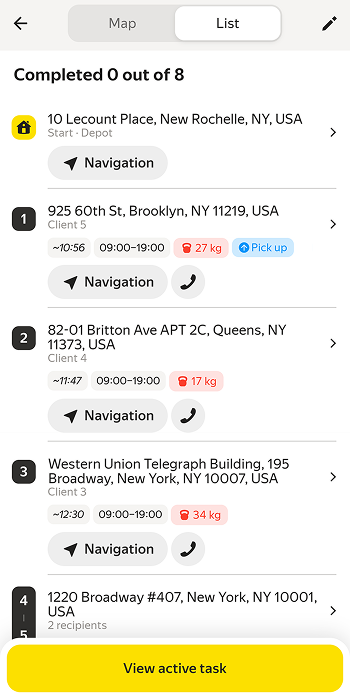
Depot card
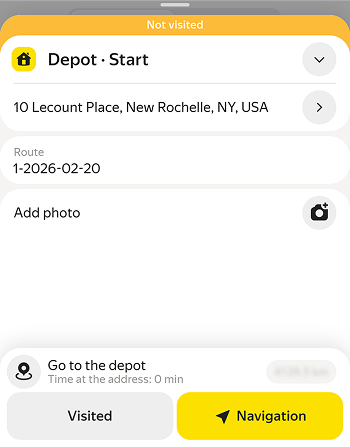
A depot card contains the following information:
-
Depot address.
-
Route number.
-
Add photo button.
Note
If the logistics coordinator has enabled the mandatory photo verification option, you won't be able to leave the depot without adding a photo of the order.
-
Scan for loading button (optional). For more information, see {T}.
A depot visit is recorded automatically when you remain at a set distance from it for a certain amount of time (these parameters may vary across depots). You can also register a visit using the Visited button if this option is enabled.
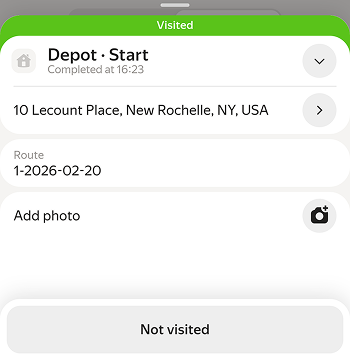
If you need to cancel a visit to a depot, open its card and tap Unvisited.
Intermediate depot
The route may include a stop at an intermediate depot to pick up or unload orders.
When editing a route that includes intermediate depots, take into account the following restrictions:
- You can't change the sequence of visits to intermediate depots or orders associated with them.
- You can change the sequence of orders that aren't related to intermediate depots, but you can't optimize the route.