Carrying out deliveries
You can carry out deliveries in automatic or manual mode. The mode is selected based on your company's settings.
In automatic delivery mode, orders are delivered strictly in the sequence set for the route.
Automatic delivery
-
Only RouteQ clients can use the automatic delivery mode.
-
To use automatic delivery, enable Automatic delivery detection in your company settings. For more information, see Set up automatic delivery.
Choose your route:
-
Open the Active section.
-
Find the route you need and tap View.
-
When you're ready to start completing orders, tap Start route.
Start of delivery
-
Tap the first order to open the order card and see the details. For more information, see View order details.
Note
If you have multiple orders associated with the same address, they will be combined into a single multi-order.
-
Tap Navigation to plot a route to the order in Yandex Navigator, Yandex Maps, or RouteQ.
Start of delivery
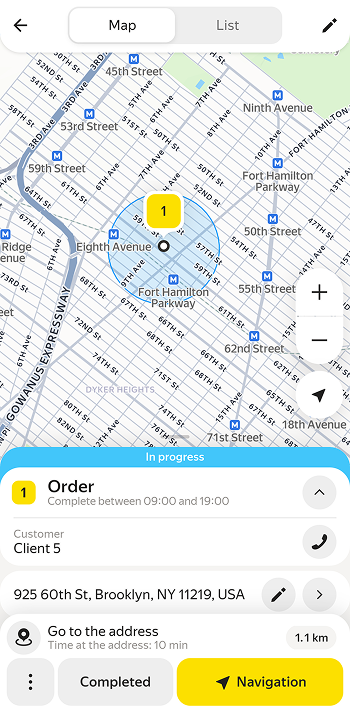
Arrival for delivery
When you arrive at the delivery address, you'll see a notification with a countdown timer. That's the time during which the delivery will be registered as finished.
Completion of delivery
After a few minutes, the order will be automatically marked as delivered.
Once you complete your first order, proceed to the next one.
The delivery may not be automatically registered as finished (for example, due to the loss of the GPS tracker signal). If you have the permission to manually confirm order delivery, tap Completed in the order card.
Manual mode
Choose your route:
- Open the Active section.
- Find the route you need and tap View.
- When you're ready to start completing orders, tap Start route.
Start of delivery
To open the route in Yandex Navigator, Yandex Maps, or RouteQ.
- Open the order card.
- Tap Navigation.
Confirmation of delivery time
You can edit the delivery time for orders that haven't been confirmed yet. To do this:
-
Select a route.
-
Open an order.
-
Tap or Call to confirm the delivery with the customer.
-
After finishing the call, select the order status.
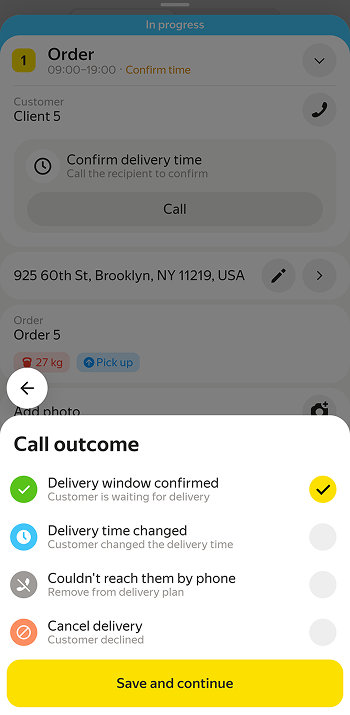
Your next actions depend on the selected status. Select the appropriate status based on your conversation with the client.
|
Status |
Action |
|
Delivery window confirmed |
Select this status if the client is waiting for the order within the specified period. |
|
Delivery time changed |
Select this status if the client asked to change the delivery time. When you select this status, you can choose a new delivery window:
|
|
Couldn't reach them by phone |
Select this status if you couldn't reach the client. The order will be excluded from the delivery plan. Try calling the client later. |
|
Cancel delivery |
Select this status if the client refused to accept the order. Then tap → Canceled to remove the order from your route. If you canceled an order by mistake, return it to your route. |
Route optimization
This step is required if the client changed the delivery time. For more information, see Route optimization.
Completion of delivery
When the order is completed, tap Completed.
Note
If the logistics coordinator has enabled the mandatory photo verification option, you won't be able to complete the delivery without adding a photo of the order.
If you marked an order as delivered by mistake, return the order to the route.
When you complete your first order, proceed to the next one on the list.
Returning an order or depot to the route
If you canceled an order or marked it as delivered by mistake:
- Open the list of orders.
- In the Completed section, tap Show.
- Select an order.
- Tap Reopen task.
If you marked a depot visit by mistake:
- Open the list of orders.
- In the Completed section, tap Show.
- Select the depot.
- Tap Not visited.
To return an order or depot from a completed route for processing:
- Open the list of routes.
- Go to the Completed section.
- Select a route.
- Open the list of orders.
- Select an order or depot.
- Tap Reopen task (if it's an order) or Not visited (if it's a depot).
After this, the route will revert to an incomplete status.