Plan/Fact reports
Plan/Fact reports are used to analyze planning accuracy and get an overview of your actual performance indicators.
The analysis includes all planning and routes for all company depots that have been loaded in Track & Trace. In the reports, planned indicators are compared with actual data on already completed routes.
Note
Routes appear in the Plan/Fact reports only on the day after their completion.
The data for the Plan/Fact report is generated daily at 00:00 GMT+3. If a route was completed after midnight, the current data for it will be included in the report only the next day.
Upload a plan to Track & Trace
To perform a comparative analysis of planned and actual indicators, send the solution from Planning to Track & Trace. Otherwise, the report will only contain the actual indicators.
Reports don't take into account that the route may have been edited by a manager in Routing Workspace or by the courier in the RouteQ app.
The plan is uploaded to Track & Trace based on how the company interacts with the service.
In the Routing Workspace interface
The plan is saved when the route is exported to Track & Trace:
- Plan the route using the Planning service.
- Click Export.
- In the Export solution window, select Track & Trace.
API
Send a request to the route-plans resource. Provide information about the route and orders in the request.
Warning
The route with the number specified in the request must already exist in the company.
Request
cURL
curl -H "Content-Type: application/json" -H "Authorization: OAuth <your-token>" -X POST -d @<File_path_in_UTF-8_encoding> -i https://courier.yandex.ru/api/v1/companies/<your-company-id>/route-plans
File
[
{
    "number":"101-2_2017-10-23",
    "nodes":[{
        "type":"depot",
        "arrival_time_s":25200,
        "transit_distance_m":0,
        "value":{
          "number":"0",
          "point":{
            "lat":55.799087,
            "lon":37.729377
          },
          "service_duration_s":200
        }
      },{
        "type":"order",
        "arrival_time_s":57526,
        "departure_time_s":57526,
        "transit_distance_m":8723,
        "used_time_window":"10:00-12:00",
        "value":{
          "number":"126",
          "point":{
            "lat":55.826326,
            "lon":37.637686
          },
          "service_duration_s":0
        }
      },{
        "type":"order",
        "arrival_time_s":57546,
        "departure_time_s":57546,
        "transit_distance_m":87423,
        "used_time_window":"10:00-12:00",
        "value":{
          "number":"2345",
          "address":"Address",
          "point":{
            "lat":55.826426,
            "lon":37.647686
          },
          "service_duration_s":0,
          "shared_service_duration_s":0,
          "multi_order":false,
          "customer_name":"Name",
          "shipment_size":{
            "volume_cbm":1.2,
            "weight_kg":5.1,
            "amount":4.5
          }
        }
      }
    ]
  }
]
Result
A response with the status code 200 means that your plan has successfully been uploaded to the server.
Request
cURL
curl -H "Content-Type: application/json" -H "Authorization: OAuth <your-token>" -X POST -d [{"number":"101-2_2017-10-23","nodes":[{"type":"depot","arrival_time_s":25200,"transit_distance_m":0,"value":{"number":"0","point":{"lat":55.799087,"lon":37.729377},"service_duration_s":200}},{"type":"order","arrival_time_s":57526,"departure_time_s":57526,"transit_distance_m":8723,"used_time_window":"10:00-12:00","value":{"number":"126","point":{"lat":55.826326,"lon":37.637686},"service_duration_s":0}},{"type":"order","arrival_time_s":57546,"departure_time_s":57546,"transit_distance_m":87423,"used_time_window":"10:00-12:00","value":{"number":"2345","address":"Address","point":{"lat":55.826426,"lon":37.647686},"service_duration_s":0,"shared_service_duration_s":0,"multi_order":false,"customer_name":"Name","shipment_size":{"volume_cbm":1.2,"weight_kg":5.1,"amount":4.5}}}]}] -i https://courier.yandex.ru/api/v1/companies/<your-company-id>/route-plans
Result
A response with the status code 200 means that your plan has successfully been uploaded to the server.
Build a report
Routing Workspace
-
Go to Reports → Plan/Fact.
-
Click Large report in Excel.
-
Click Select date range to set a time frame for planned and completed routes to be analyzed.
You can select a period from the list (Yesterday, 7 days, 30 days, Last month) or set your own period. The maximum period duration is 60 days.
Note
The current day can't be included in the report, even if the routes that you're interested in have already been completed.
-
Click Prepare.
After you select the period, the
 icon appears in the upper-right corner. This means that the report is being prepared. You can continue working anywhere in the Routing Workspace interface.
API
You can get the data in two ways:
- Get planned metrics only.
- Get a plan/fact report for each point of the route.
Get planned metrics only
Send a request to the route-plan-info resource. This method returns a list of routes with their planned metrics.
Request
cURL
curl -H "Authorization: OAuth <your-token>" -X GET https://courier.yandex.ru/api/v1/companies/<your-company-id>/route-plan-info
Result
[
  {
    "id": 17872948,
    "number": "0-1-2025-03-13",
    "date": "2025-02-08",
    "plan_metrics": {
    "orders_count": 2,
    "total_transit_distance_m": 10534,
      "total_duration": {
        "value": 2882,
        "text": "0:48:02"
      }
    }
  },
  {
    "id": 18508527,
    "number": "1-1-2025-04-02",
    "date": "2025-02-12",
    "plan_metrics": {
      "orders_count": 4,
      "total_transit_distance_m": 98554,
      "total_duration": {
        "value": 10886,
        "text": "3:01:26"
      }
    }
  },
  {
    "id": 18280581,
    "number": "2-1-2025-03-13",
    "date": "2025-03-11",
    "plan_metrics": {
    "orders_count": 2,
    "total_transit_distance_m": 43246,
    "total_duration": {
        "value": 31546,
        "text": "8:45:46.358154"
      }
    }
  }
]
To get a route report for a specific period, use the start_date and end_date parameters. The date range is inclusive.
Example
Get a route report for March 12 and 13, 2025.
curl -H "Authorization: OAuth <your-token>" -X GET https://courier.yandex.ru/api/v1/companies/<your-company-id>/route-plan-info?start_date=2025-03-12&end_date=2025-03-13
For more information about the request parameters, see the route-plan-info documentation.
Get a plan/fact report for each point of the route
Send a request to the plan-fact-versioned-nodes resource. This method returns detailed information about each point of the route with planned and actual metrics.
- How to get the data
-
-
For the initial export, send a request with
prev_version= 0.Request
curl -H "Authorization: OAuth <your-token>" -X GET "https://courier.yandex.ru/api/v1/analytics/companies/<your-company-id>/plan-fact/versioned/nodes?prev_version=0"Result
In the response, you'll receive the version and data:
{ "version": "1234567890123", "data": [{ "route":{ "id": 22821698, "number": "0-1-2024-08-13", "date": "2024-08-13" }, "courier":{ "id": 4428812, "number": "Courier 1", "name": "Courier 1" }, "depot":{ "id": 109787, "number": "100", "name": "Depot", "timezone": "Europe/Moscow" }, "fact":{ "type": "depot", "status": "unvisited", "address": "ul. Lva Tolstogo, 16, Moscow, Russia", "point":{ "lat": 55.733969, "lon": 37.587093 }, "arrival_time": null, "departure_time": null // ... other fields }, "plan":{ "type": "depot", "address": "ul. Lva Tolstogo, 16, Moscow, Russia", "point":{ "lat": 55.733969, "lon": 37.587093 }, "arrival_time":{ "value": 1723525200, "text": "2024-08-13T08:00:00+03:00" }, "departure_time":{ "value": 1723525200, "text": "2024-08-13T08:00:00+03:00" } // ... other fields }, "version_status": "added" } // ... other route points ] } -
Repeat the request, specifying the obtained version in
prev_version.Request
curl -H "Authorization: OAuth <your-token>" -X GET "https://courier.yandex.ru/api/v1/analytics/companies/<your-company-id>/plan-fact/versioned/nodes?prev_version=1769642737915"Result
You will get up-to-date data:
{
  "version": "1234567890123",
  "data": [{
      "route":{
        "id": 22821698,
        "number": "0-1-2024-08-13",
        "date": "2024-08-13"
      },
      "courier":{
        "id": 4428812,
        "number": "Courier 1",
        "name": "Courier 1"
      },
      "depot":{
        "id": 109787,
        "number": "100",
        "name": "Depot",
        "timezone": "Europe/Moscow"
      },
      "fact":{
        "type": "depot",
        "sequence_pos": 0,
        "real_sequence_pos": 0,
        "status": "unvisited",
        "number": "0",
        "customer_name": null,
        "address": "ul. Lva Tolstogo, 16, Moscow, Russia",
        "failed_time_window": false,
        "point":{
          "lat": 55.764744,
          "lon": 37.522144
        }
        // ... other fields
      },
      "plan":{
        // ... planned indicators
      }
      // ... other fields
    }
    // ... other route points
  ]
}
If the
dataarray is empty, there have been no new data since the previous request.
If there is a lot of data, use the
pageandper_pageparameters for pagination. For more information, see the documentation for plan-fact-versioned-nodes. -
Download the report
When the report is ready, a notification will pop up with the report's name (the name is generated automatically and contains the start and end dates of the period).
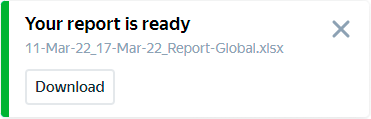
Click Download to view the report. If you close the notification, you can return to the list of available reports later. You can do this by clicking the  icon in the upper-right corner.
To learn more about report fields, see Plan/Fact.
Note
The report is only available for download for one day. After that, the report must be created again.