Order items
Note
Order items can only be uploaded for orders with the delivery type.
You can upload to Track & Trace the items of each order, including:
- Number of items.
- Product name, quantity, and price of each item.
This way, you can:
- Reduce the number of errors and losses when processing returns.
- Streamline the return management process for couriers.
- Stop using printouts.
- Reduce the number of manual operations.
You can upload order items:
- Via Routing Workspace.
- Via the API.
Uploading order items via the interface
Data upload template
To upload order items, use an Excel file filled out using this template.
You can also download the template via Routing Workspace. To do this:
-
Open Routing Workspace.
-
Go to Track & Trace → Dashboard.
-
In the upper-right corner of the screen, click Import → Order items.
-
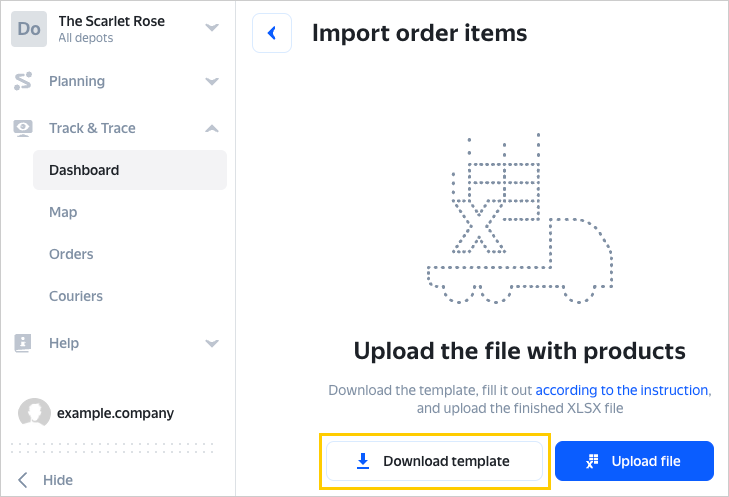
Click Download template.
-
Fill out the Excel file according to the template.
Note
In the file, the order number in the Order number field (
location_idin the API) on the Items sheet should match the order number in Track & Trace (you can view it in the order card).The date may be automatically added to the order number when exporting planning results to Track & Trace. This happens when the new order number matches the one that already exists in Track & Trace.
For example, if Track & Trace already has an order with number
Order 1, the card of the new order will have the numberOrder 1 YYYY-MM-DD.Make sure that the order number in the file matches that in the order card. To do this, open the order card and see if the order number matches the one in the file. If necessary, add the planning date in the
YYYY-MM-DDformat to the Order number field.
Uploading data from a file
Note
For order items to be uploaded correctly, you must already have a route loaded in Track & Trace. For more information, see Uploading data.
-
Open Routing Workspace.
-
Go to Track & Trace → Dashboard.
-
In the upper-right corner of the screen, click Import → Order items.
-
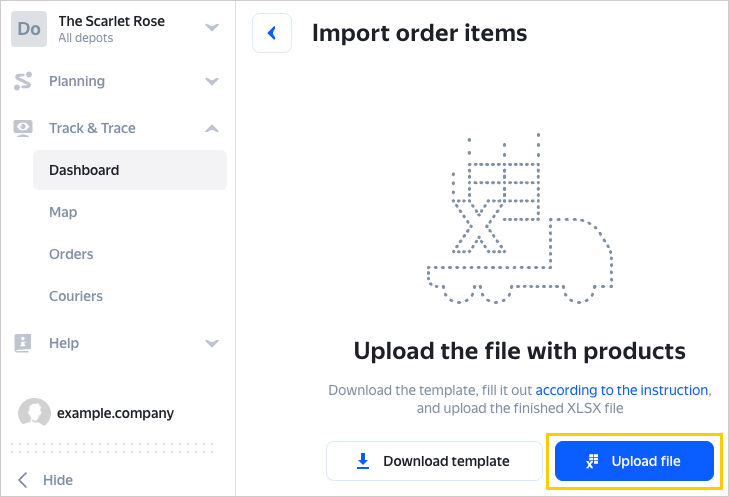
Click Upload template and select the file you filled out using the template.
In case of upload errors, fix them in the interface or download the error file, fix the errors, and upload the fixed file.
-
Click Import.
You can upload up to 10,000 products at once across all orders.
Fields to complete:
|
Field name |
Parameter |
Required |
Description |
|
Order number |
|
Yes |
Order number in Track & Trace. |
|
Unique number |
|
Yes |
Product or service ID. All product numbers within a given order must be unique. |
|
SKU |
|
No |
Product or service item code. Within a single order, item numbers may be duplicated. For example, if the same product is sold at different prices: regular and promotional. |
|
Name |
|
Yes |
Product or service name up to 100 characters long. |
|
Quantity |
|
Yes |
Quantity of a product or service. By default, 1. |
|
Price |
|
Yes |
Unit price of a product or service. By default, 0. |
|
Barcode |
|
No |
Product barcode. Used for item identification. |
Barcoding
You can add barcodes to order items to automate the receipt, shipment, and return of goods by scanning these barcodes in the RouteQ mobile app.
Use cases
A courier can scan products in the RouteQ app in three cases:
Receiving goods at the depot
When a courier arrives at a depot, they must make sure that they've received all items for all orders. To do this:
- The courier scans all the items when loading them into the vehicle.
- The app checks if the scanned products match the order items.
If any items are missing, the courier locates and scans them, or marks the shipment as partial.
Arrival at the order delivery location
When the courier arrives at the order delivery location, they must get all items for the client out of the vehicle. To do this:
- The courier finds the products in the vehicle and scans them.
- The app displays a notification indicating whether the scanned item belongs to the current order.
Partial delivery or order refusal
If a client accepts all products, the order is considered fully completed. In case of partial delivery or if the client refuses all the items, the courier scans the product barcode(s) and registers a return in the app.
Limitations
Each order item can have only one barcode.
Marking types
|
Marking type |
What is marked |
Marking symbol type |
code length |
|
EAN barcode/item code |
A product — for identifying the item and its manufacturer. Two bottles of water from the same brand and factory will share the same barcode. |
EAN barcode |
13 characters |
Viewing order items
-
Go to Track & Trace → Dashboard.
-
Select the route and order.
-
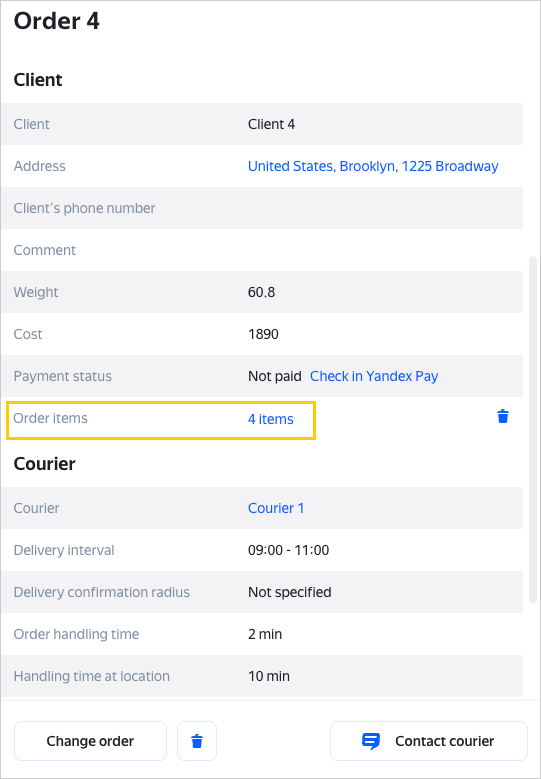
In the order card, click the link with the number of items in the Order items field.
Link to order items in the order card
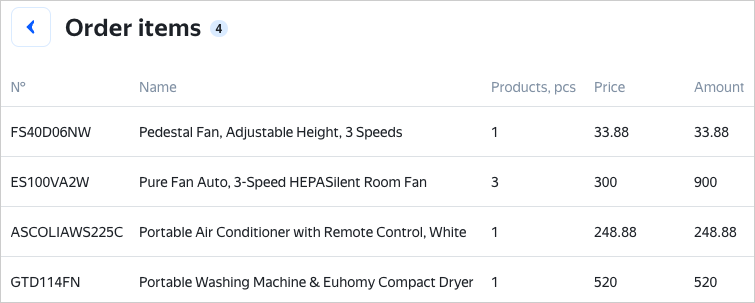
In the list, you'll see item codes, names, quantities, prices, total amounts, and barcode numbers (if any).
Viewing a delivered order
You can view detailed information about the delivered items for the order. To do this:
- Go to Track & Trace → Dashboard.
- Select the route and order.
- Click the link with the number of items in the Order items field.
If the courier added a photo to any of the items, the Photo column will contain links to the photos.
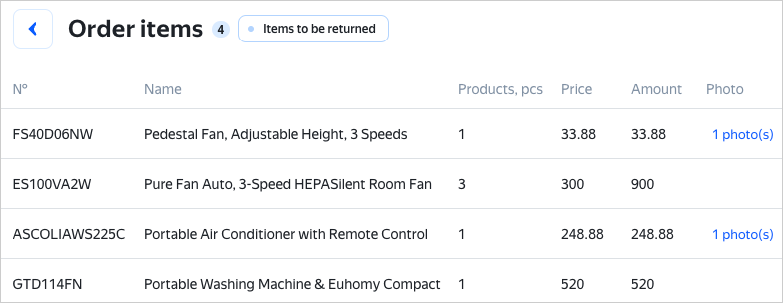
Order items can also be viewed by the companies added as observers.
Order with a partial return
If the client returns some of the orders, the courier must note this with a comment in the app and can also add photos for each item. For more information, see Partial delivery if order contents are specified.
To view information about delivered items and returns:
- Go to Track & Trace → Dashboard.
- Select the route and order. The Order items field will display a message that some items were returned.
- Click the link with the number of items.
By default, the order items table displays all items.
Click Items to return to hide delivered items from the table. You'll see:
- Number of items to return.
- Number of products to return.
- Cost per item and total cost of returns.
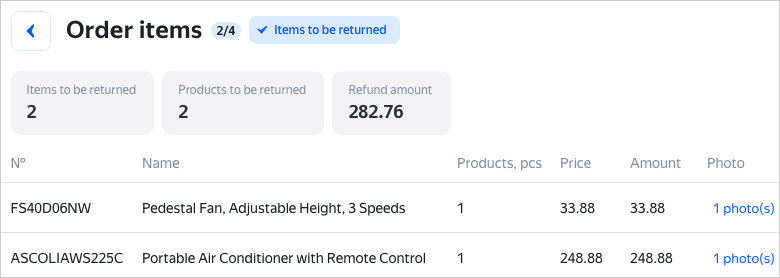
If the courier added a photo to any of the items, the Photo column will contain links to the photos.
Uploading order items via the API
You can upload and update order items information via the API:
- Add order items.
- Get order items.
- Add information about product returns.
- Delete item.
- Delete all order items.